Skip to content
SetupArc

Best 4K Monitors

Every monitor here is 3840 × 2160, and that is almost the only thing they have in common — they run from 60 Hz to 240 Hz, from IPS to QD-OLED, and from $280 to over $1,000. This guide sorts them by the job you actually need doing, with the trade-offs and the reasons to skip each one stated outright.

SetupArc may earn commissions from qualifying purchases.

Quick picks

1Best Overall
SetupArc9.3

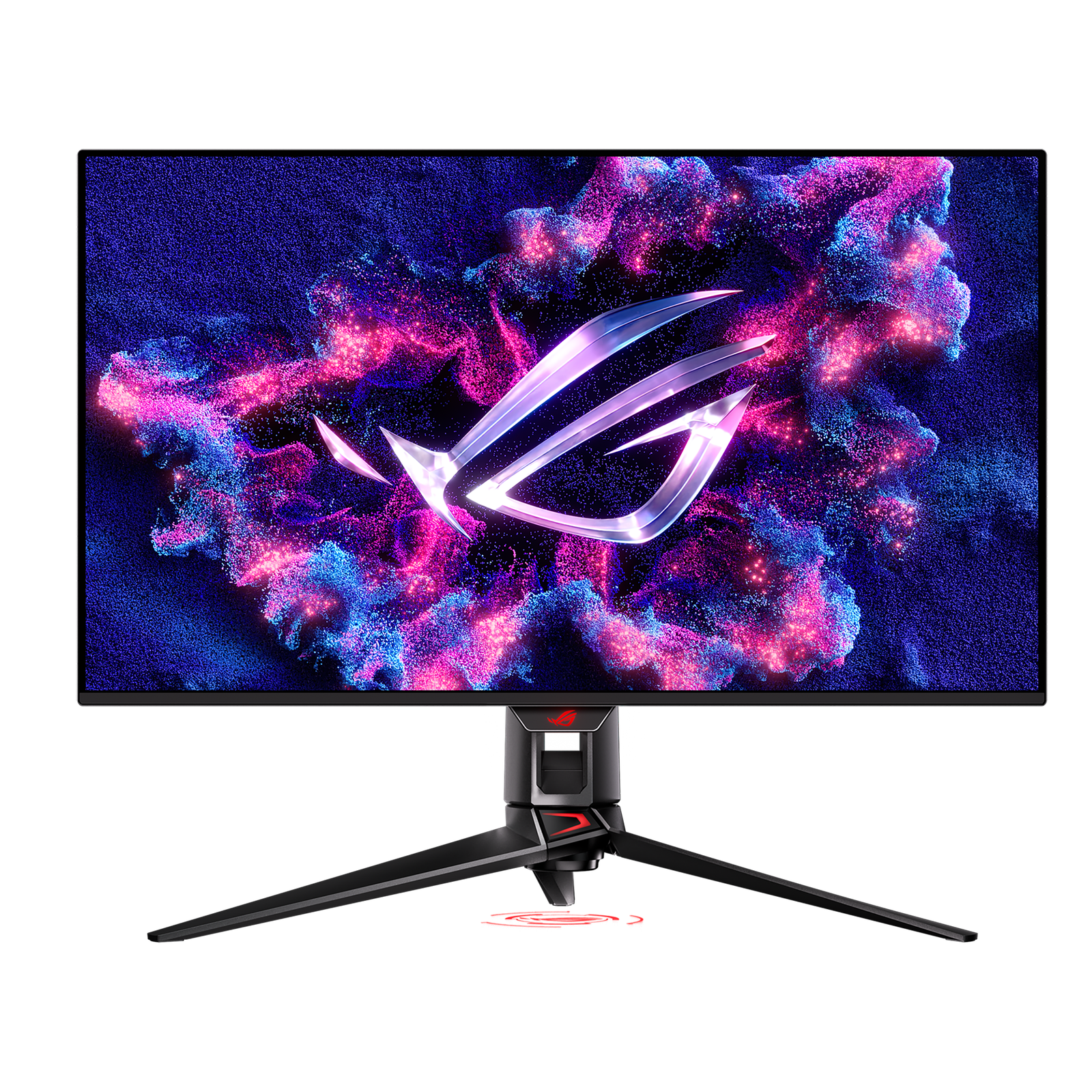
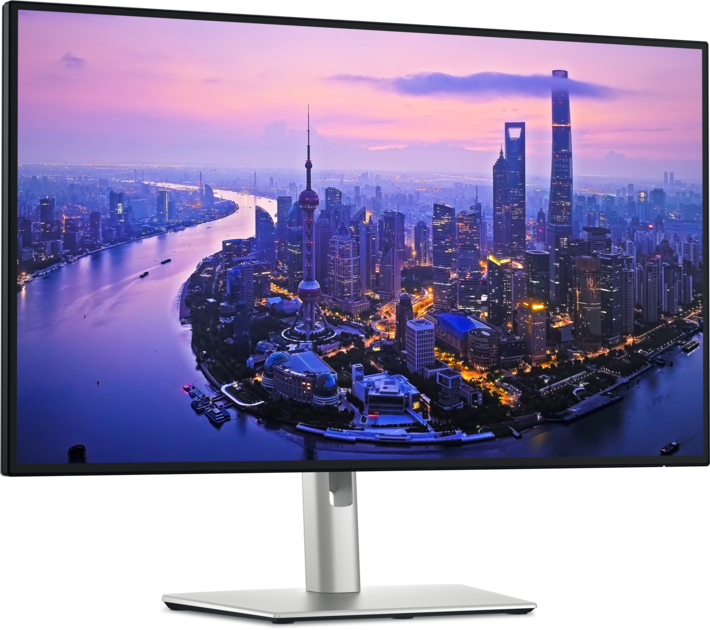
ASUS ROG Swift OLED PG32UCDM

A 4K/240Hz QD-OLED that's exceptional for gaming and doubles as a stunning creative display.

Why it fits: The most capable 4K panel here: 32 inches of QD-OLED at 240 Hz with per-pixel contrast, plus 90 W USB-C charging and a KVM, so it doubles as a work display rather than a gaming-only screen.

Screen Size
32"
Panel Type
QD-OLED
Refresh Rate
240 Hz
USB-C Power Delivery
90 W

Best suited for: Gaming · Creative Work · Video Editing

Tradeoff: Expensive

Skip it if: Budget buyers, and anyone who leaves static UI on screen for long stretches without OLED care.
Price
$950–$1,100
Check Price Full review
2Best for Productivity
SetupArc9.2

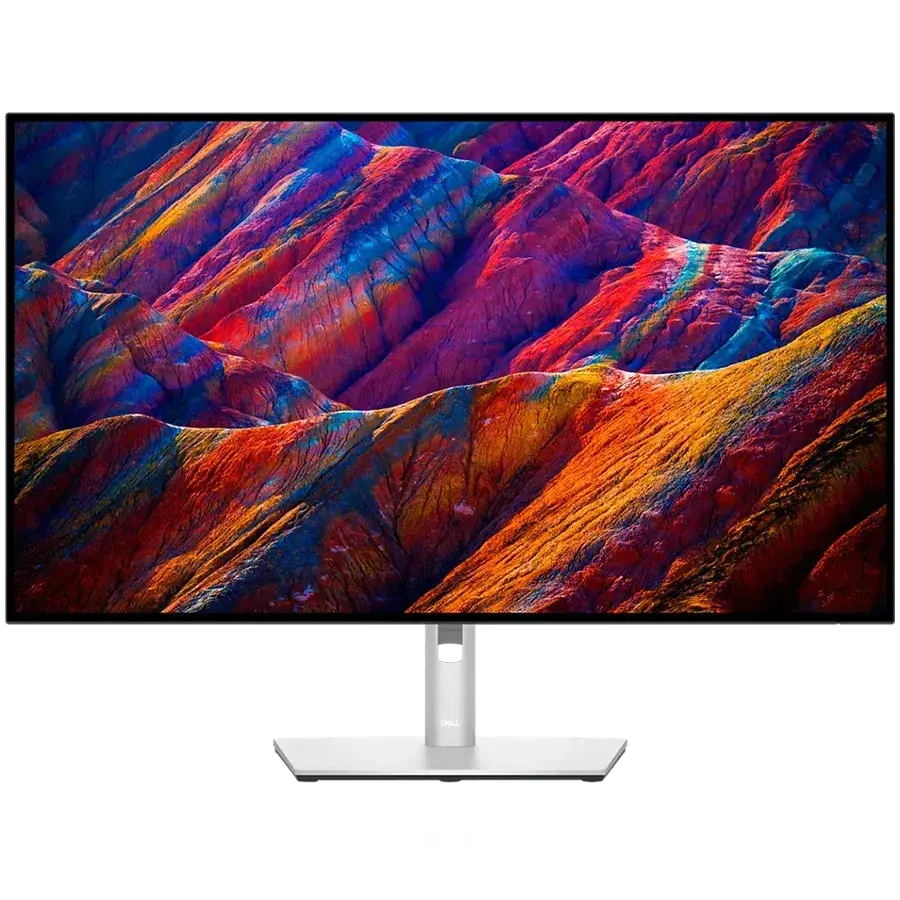
Dell UltraSharp U2725QE

The single-cable productivity monitor to beat: 4K, Thunderbolt 4, 140W charging, KVM and Ethernet in one.

Why it fits: 4K on an IPS Black panel, where the contrast gain shows most on text, combined with the deepest connectivity here — Thunderbolt 4, 140 W charging, KVM and 2.5 GbE.

Screen Size
27"
Panel Type
IPS Black
USB-C Power Delivery
140 W
Ethernet
2.5 GbE

Best suited for: Productivity · Coding · General Use

Tradeoff: Premium price for a 60/120Hz productivity panel

Skip it if: Gamers who need high refresh rates, and anyone who doesn't need the Thunderbolt dock and would rather save money.

Price from
From $642
Check Price Full review
3Best Value
SetupArc8.4

Dell S2725QC

Sharp 4K, 120Hz and single-cable USB-C charging at a genuinely mainstream price.

Why it fits: The cheapest route to 4K at 120 Hz, with 65 W USB-C charging and speakers. What you give up is the dock hardware: no Ethernet, no KVM, no DisplayPort input.

Screen Size
27"
Refresh Rate
120 Hz
USB-C Power Delivery
65 W
Speakers
2 × 5W

Best suited for: Productivity · General Use · Mac compatibility

Tradeoff: No Ethernet, KVM or DisplayPort input

Skip it if: Anyone needing a Thunderbolt dock, Ethernet, KVM or high refresh rates.

Price
$280
Check Price Full review
4Best for 4K Gaming Value
SetupArc8.5

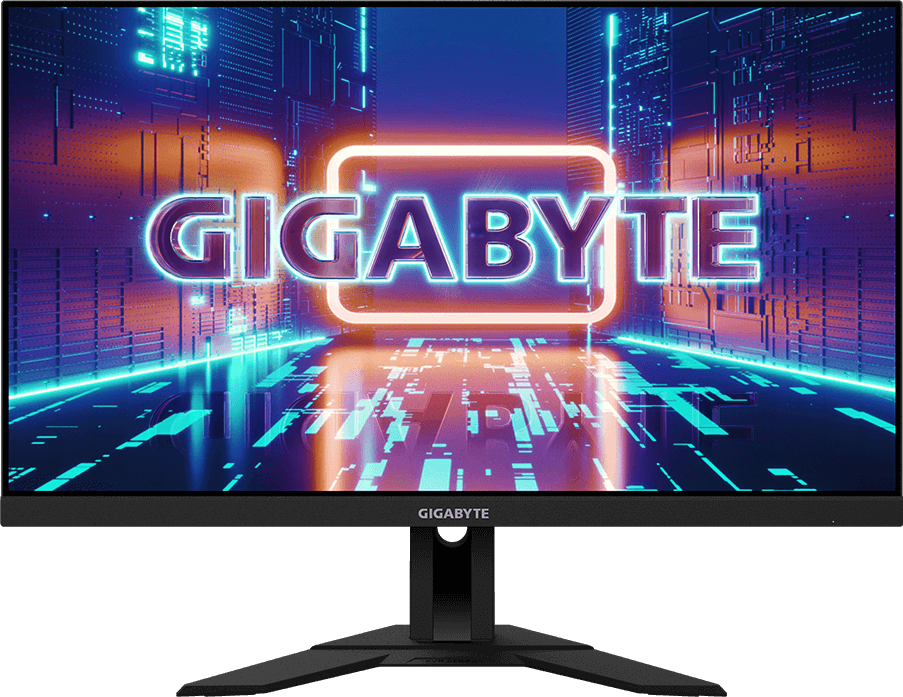
Gigabyte M28U

4K at 144Hz with HDMI 2.1, USB-C and KVM — a versatile value pick for play and work.

Why it fits: 144 Hz and two HDMI 2.1 ports at a mid-range price — the affordable way to drive 4K at high refresh from a PC or a current console, with a Type-C KVM included.

Refresh Rate
144 Hz
HDMI
2 × HDMI 2.1
Adaptive Sync
FreeSync Premium Pro / G-Sync Compatible
KVM Switch
Yes (Type-C)

Best suited for: Gaming · Creative Work · Productivity

Tradeoff: DisplayHDR 400 (no strong local dimming)

Skip it if: Those wanting OLED contrast or a full Thunderbolt dock with high-wattage charging.

Price
$400–$500
Check Price Full review
5Best for Creative Work
SetupArc8.6

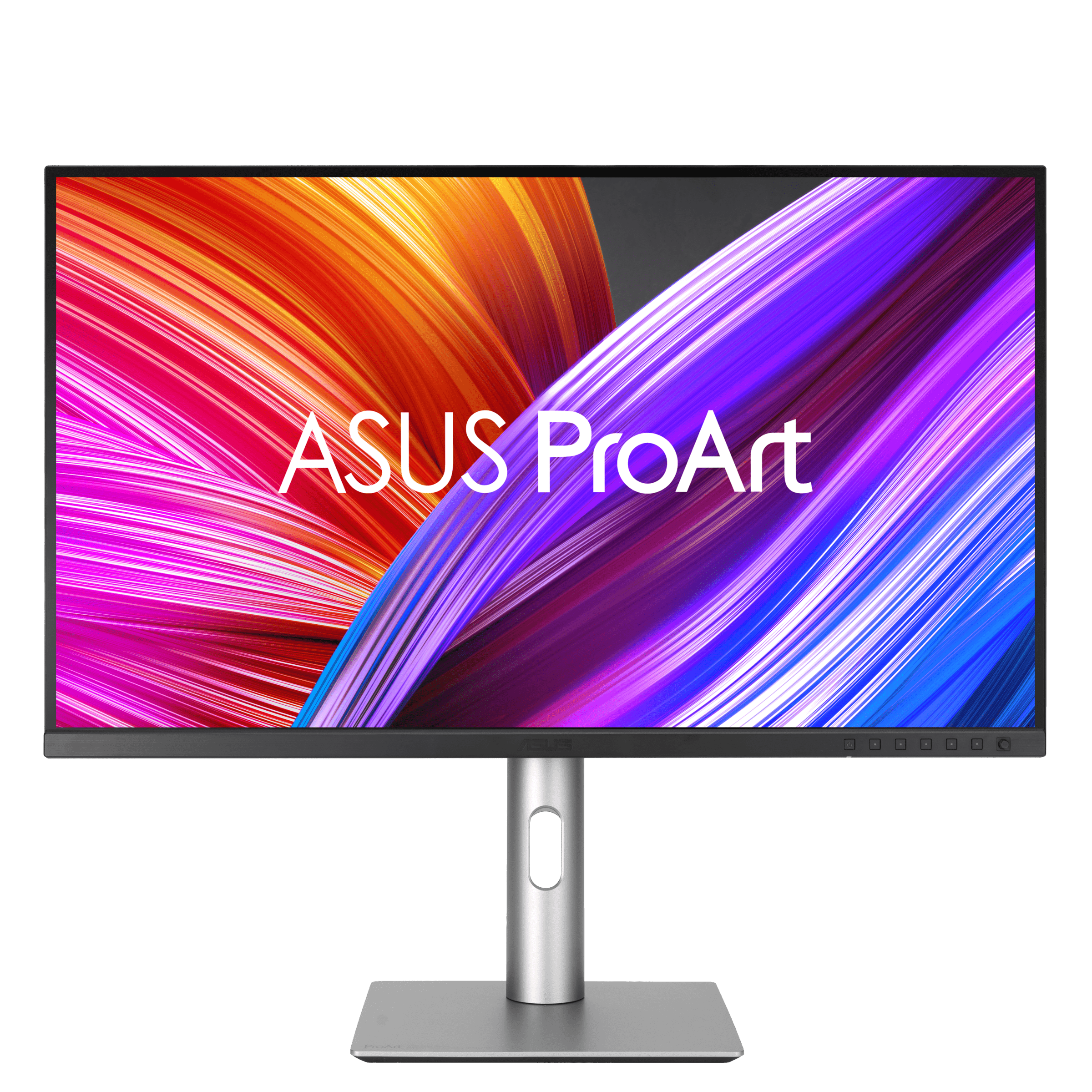
ASUS ProArt Display PA279CRV

99% Adobe RGB/DCI-P3, factory calibration and USB-C 96W at a value price — a lot of creator monitor for the money.

Why it fits: 99% Adobe RGB and DCI-P3 with factory calibration at a mid-range price, plus 96 W USB-C — the colour-accurate 4K option that does not require a professional budget.

Color Coverage
99% Adobe RGB / 99% DCI-P3
USB-C Power Delivery
96 W
Refresh Rate
60 Hz
Speakers
2 × 2W

Best suited for: Creative Work · Video Editing · Productivity

Tradeoff: 60Hz (not for gaming)

Skip it if: Gamers (60Hz), and pros who need hardware calibration or higher peak HDR brightness.

Price
$399
Check Price Full review
6Best for Color-Critical Work
SetupArc9.0

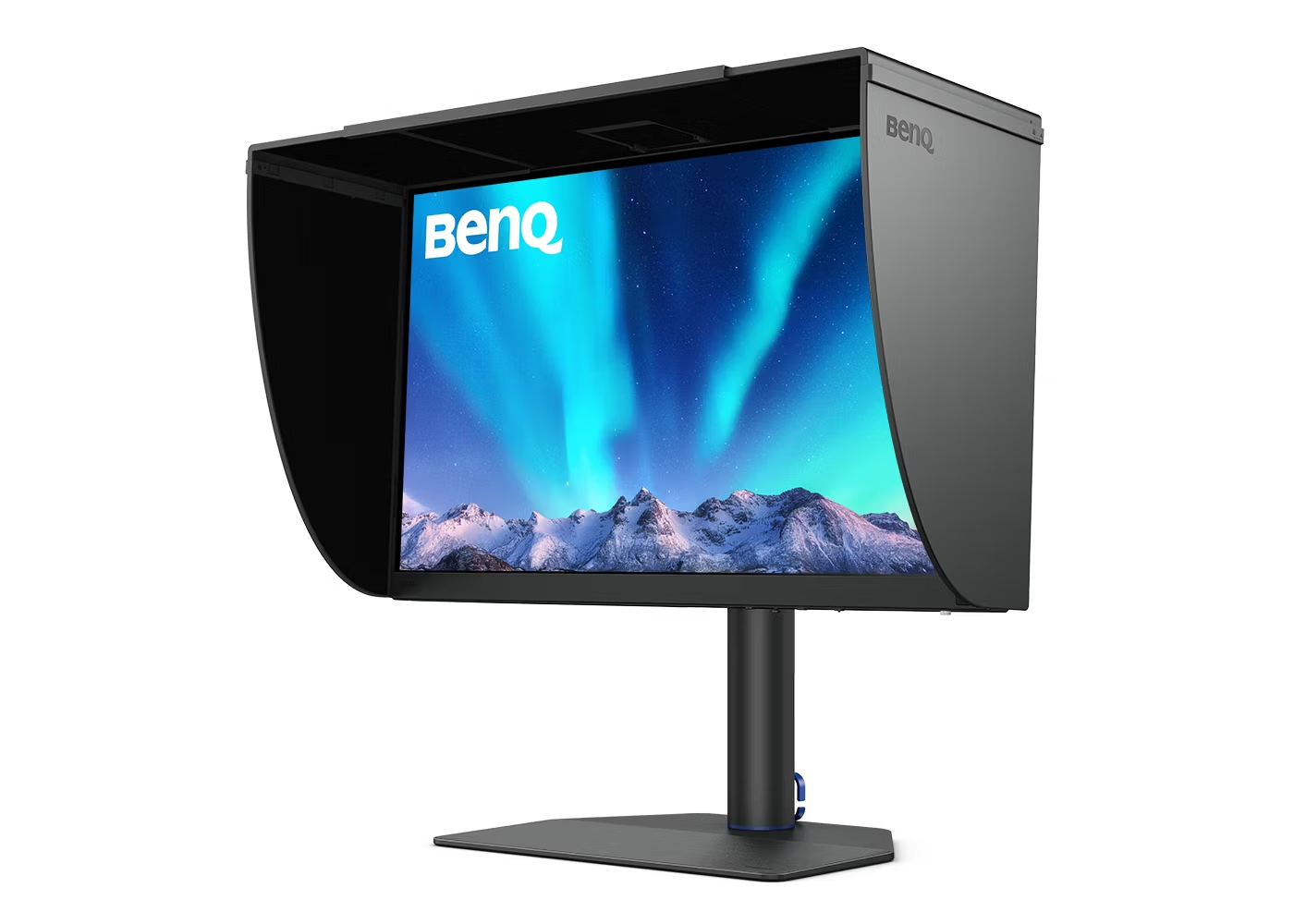
BenQ PhotoVue SW272U

Reference photo monitor: 99% Adobe RGB, 16-bit 3D LUT hardware calibration and a glare-free nano-matte panel.

Why it fits: A nano-matte 4K panel with 16-bit 3D LUT hardware calibration and 99% Adobe RGB, aimed at print and photo work where the screen has to be trusted rather than merely look good.

Color Coverage
99% Adobe RGB / 99% DCI-P3
Panel Type
IPS (Nano-Matte)
HDR
HDR10 / HLG (DisplayHDR 400)
USB-C Power Delivery
90 W

Best suited for: Creative Work · Video Editing · Photo editing

Tradeoff: Expensive (price varies by bundle)

Skip it if: General users and gamers; the value proposition only makes sense for color-critical work.

Price
$1,099–$1,549 (varies by bundle/retailer)
Check Price Full review

The six 4K monitors compared

MonitorScoreScreen SizePanel TypeRefresh RateUSB-C Power DeliveryKVM SwitchPrimary use caseReference price
ASUS ROG Swift OLED PG32UCDM9.332"QD-OLED240 Hz90 WYesGaming$950–$1,100
Dell UltraSharp U2725QE9.227"IPS Black120 Hz140 WYesProductivity$640–$870
Dell S2725QC8.427"IPS120 Hz65 WNot recordedProductivity$280–$350
Gigabyte M28U8.528"SS-IPS144 HzNot recordedYes (Type-C)Gaming$400–$500
ASUS ProArt Display PA279CRV8.627"IPS60 Hz96 WNot recordedCreative Work$399–$470
BenQ PhotoVue SW272U9.027"IPS (Nano-Matte)60 Hz90 WNot recordedCreative Work$1,099–$1,549 (varies by bundle/retailer)

Specifications and primary use case come from each product's own record in our catalogue. Where a value is not stored we say so rather than estimating it. Reference price is a typical street price, not a live retailer quote.

What 4K actually changes

At the same screen size, 4K puts roughly twice the pixels across the width of a 1440p panel. In practice that shows up in three places: text edges look closer to print, a full-size window holds more rows before you scroll, and fine detail in photos and video survives being displayed rather than being resampled away. The catch is scaling — at 27 inches most people run 4K scaled rather than at native size, which trades some of that extra desktop space back for readable text. Larger panels give the pixels more room, so scaling becomes less of a compromise as the screen grows.

4K at 27 inches or 32 inches?

Both sizes are represented here, and neither is universally better — the choice depends on how much desk depth you have and whether you prefer sharper text or more usable space.

27 inches
The denser of the two: the same pixels packed into less area, so text looks extremely sharp and scaling is usually the comfortable choice. Five of the six picks here are 27 or 28 inches, and it suits shallower desks where a larger panel would sit too close.
32 inches
The same pixel count spread wider, so the desktop stays usable at or near native size and windows sit side by side more comfortably. It asks for more desk depth, and it is the size of the flagship pick here rather than the value ones.

60 Hz, 120 Hz or 240 Hz at 4K?

Refresh rate is where the price of a 4K monitor climbs fastest, and it is worth being honest about when it pays back. A high refresh rate only helps when the machine driving it can actually produce frames at that rate, so match the panel to the work, not to the spec sheet.

60 Hz
Fine for documents, code and photo work, and it is what the two colour-focused picks here run. Cursor and scrolling motion is visibly less smooth than the faster panels, which some people notice immediately and others never do.
120–144 Hz
The noticeable step for everyday use: smoother scrolling and window movement, plus enough headroom for most gaming. Three picks here sit in this band, including the cheapest one.
240 Hz
Aimed at fast-paced gaming rather than desk work. Only the flagship reaches it, and it is a large part of why that monitor costs several times the value pick.

4K or 1440p?

If you are still deciding between resolutions rather than between 4K models, that question deserves more room than this page gives it — the trade-off involves scaling, desk space and cost per screen, not just pixel count.

Read the full 4K vs 1440p comparison →

What matters for this use case

Panel type

IPS is the dependable default for colour and viewing angles; IPS Black roughly doubles contrast, which shows most on text. QD-OLED gives per-pixel black levels and the best motion, at a higher price and with static-image care to consider.

Refresh rate

60 Hz suits colour and document work, 120–144 Hz makes everyday motion smoother and covers most gaming, and 240 Hz is for fast-paced play. The jump in price between these bands is steeper at 4K than at lower resolutions.

USB-C and power delivery

Five of the six charge a laptop over the same cable that carries video, from 65 W to 140 W. One has USB-C video without a stored wattage, so we do not claim a figure for it.

KVM and Ethernet

A built-in KVM switches between two machines without extra hardware, and wired Ethernet is what usually decides whether a monitor can replace a dock. Only one pick here has both.

Colour coverage

99% Adobe RGB matters for print work; DCI-P3 coverage matters for video. Hardware calibration, rather than factory calibration alone, is the dividing line between the two creative picks.

Price and what you give up

Below roughly $500 the compromises are consistent: less connectivity, dimmer HDR and either lower refresh or narrower colour. Nothing here is a bad screen; they simply stop covering every use at once.

How we chose

Recommendations are based on current specifications, product positioning, verified manufacturer data and third-party testing — not hands-on reviews. Products are ordered by how well they fit this specific use case, never by commission, retailer count or popularity. Use the interactive Compare tool and the Setup Finder to weigh them against your own priorities.

Common questions

Is 4K worth it on a 27-inch monitor?

For text-heavy work, usually yes — the sharpness gain over 1440p is visible at normal desk distances. Most people run 4K scaled at this size rather than native, which keeps text readable but returns some of the extra desktop space. If you want maximum usable area instead of maximum sharpness, a larger panel makes better use of the same pixels.

Is 60 Hz enough for a 4K monitor?

For documents, code, photo and print work, yes — the two colour-focused picks here are 60 Hz for exactly that reason. You will see less smooth scrolling and cursor movement than on a 120 Hz panel, and for gaming it is the wrong choice.

Do I need USB-C on a 4K monitor?

Only if you dock a laptop. It carries video, data and charging over one cable, which is why five of these six include it. For a desktop tower it adds nothing you need, and you can spend that budget on panel quality instead.

Is OLED worth it for 4K?

For contrast and motion it is the best panel here, and the flagship pick shows why. It costs several times the value option, and it asks for some care with static interface elements over long sessions — a fair trade for gaming and media, less obviously so for spreadsheets.

Is 4K better for productivity than 1440p?

It is sharper, which matters most for long reading and coding sessions, but it is not automatically better: 1440p costs less and needs no scaling at 27 inches. Our 4K vs 1440p guide works through that decision properly.

What do I give up on a cheaper 4K monitor?

Connectivity first — the value pick here has no Ethernet, no KVM and no DisplayPort input. After that, HDR brightness and colour coverage narrow, and you choose between high refresh and wide-gamut accuracy rather than getting both.

Related content