Skip to content
SetupArc

Best 27-Inch Monitors

27 inches is the size most desks settle on, which is exactly why the monitors that fit it vary so much — the same footprint covers a $230 Mini-LED gaming panel and a $1,150 hardware-calibrated photo display. The decision that matters most at this size is 1440p or 4K, so that question gets a section of its own before the picks.

SetupArc may earn commissions from qualifying purchases.

Quick picks

1Best Overall
SetupArc9.2

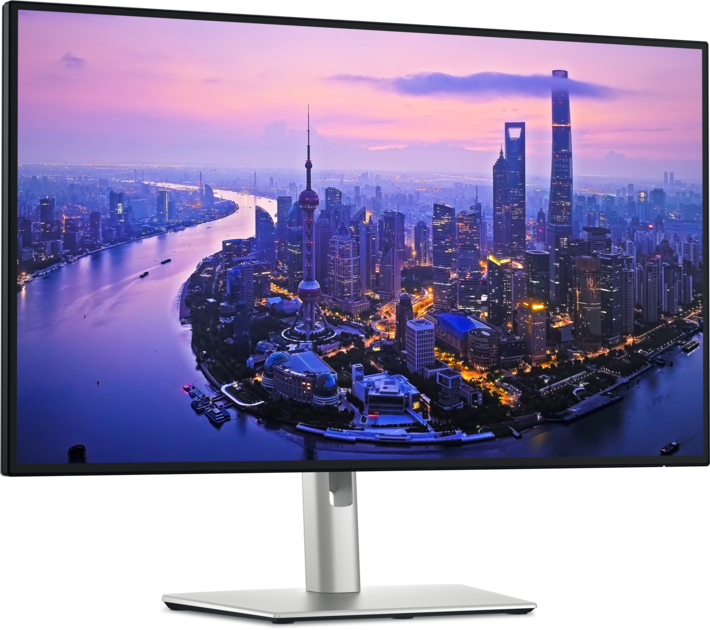
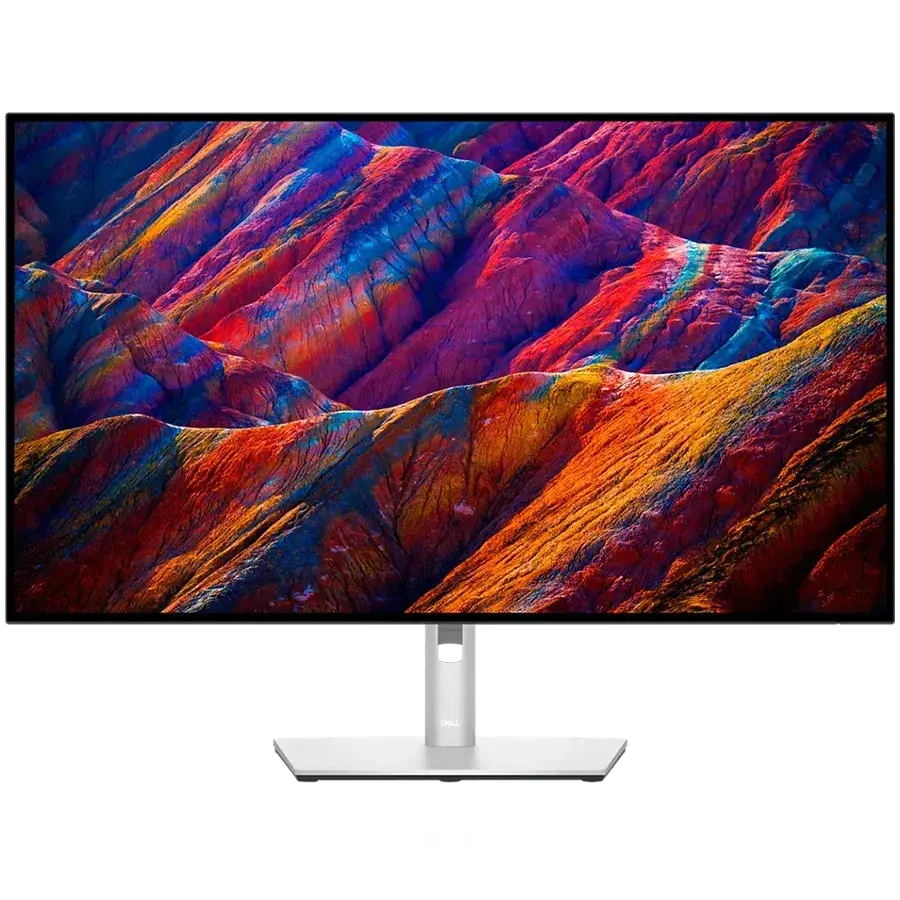
Dell UltraSharp U2725QE

The single-cable productivity monitor to beat: 4K, Thunderbolt 4, 140W charging, KVM and Ethernet in one.

Why it fits: The highest-scoring 27-inch monitor we track: 4K on an IPS Black panel where the contrast shows on text, plus Thunderbolt 4 with 140 W charging, a KVM and 2.5 GbE behind it.

Resolution
3840 × 2160 (4K UHD)
Panel Type
IPS Black
USB-C Power Delivery
140 W
KVM Switch
Yes

Best suited for: Productivity · Coding · General Use

Tradeoff: Premium price for a 60/120Hz productivity panel

Skip it if: Gamers who need high refresh rates, and anyone who doesn't need the Thunderbolt dock and would rather save money.
Price from
From $642
Check Price Full review
2Best Value 4K
SetupArc8.4

Dell S2725QC

Sharp 4K, 120Hz and single-cable USB-C charging at a genuinely mainstream price.

Why it fits: The cheapest way to get 4K at this size with 120 Hz and single-cable 65 W charging. The dock hardware is what is missing — no Ethernet, no KVM, no DisplayPort input.

Resolution
3840 × 2160 (4K UHD)
Refresh Rate
120 Hz
USB-C Power Delivery
65 W
Speakers
2 × 5W

Best suited for: Productivity · General Use · Mac compatibility

Tradeoff: No Ethernet, KVM or DisplayPort input

Skip it if: Anyone needing a Thunderbolt dock, Ethernet, KVM or high refresh rates.

Price
$280
Check Price Full review
3Best for Creative Work
SetupArc8.6

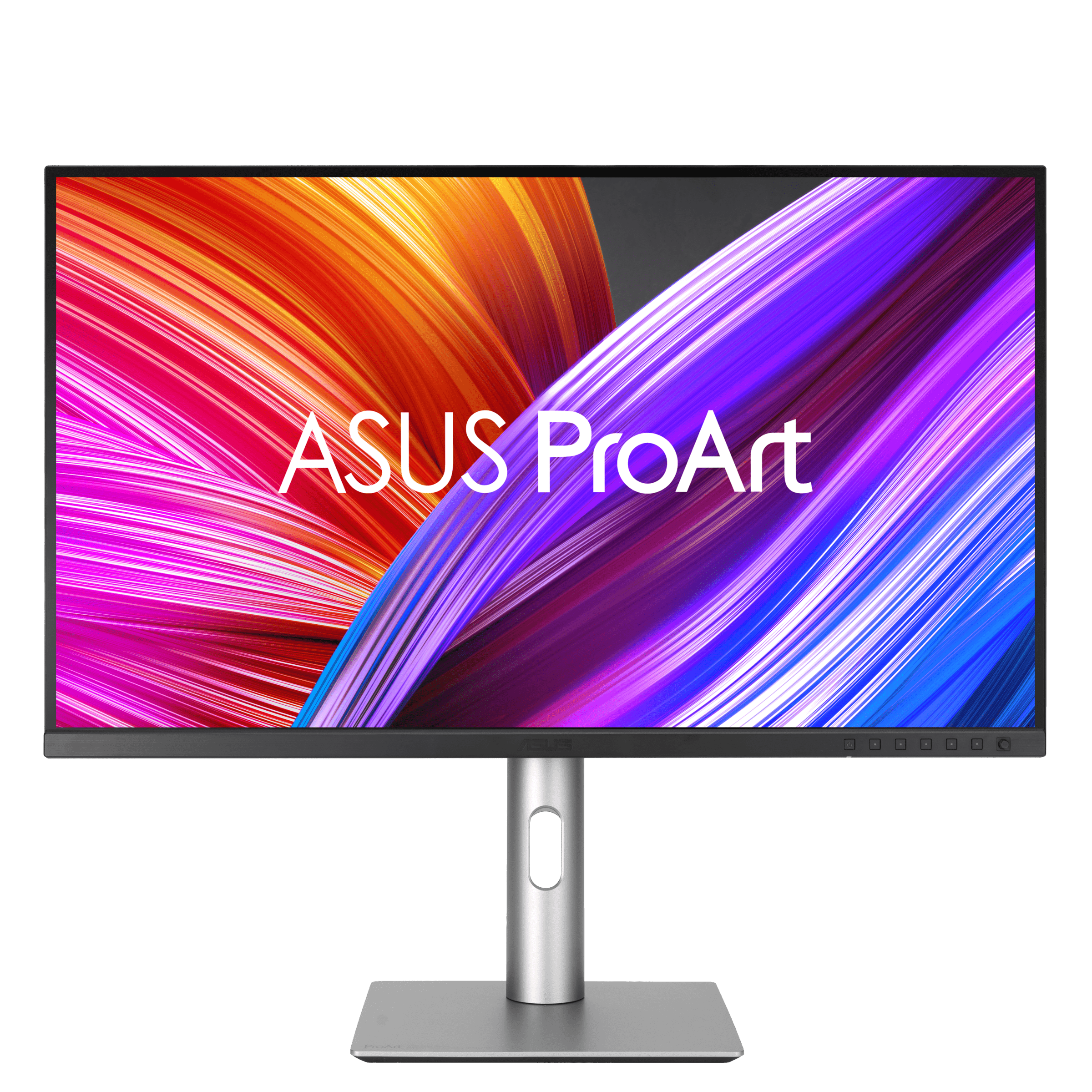
ASUS ProArt Display PA279CRV

99% Adobe RGB/DCI-P3, factory calibration and USB-C 96W at a value price — a lot of creator monitor for the money.

Why it fits: 99% Adobe RGB and DCI-P3 with factory calibration and 96 W USB-C at a mid-range price — 4K colour accuracy without a professional budget.

Resolution
3840 × 2160 (4K UHD)
Color Coverage
99% Adobe RGB / 99% DCI-P3
USB-C Power Delivery
96 W
Refresh Rate
60 Hz

Best suited for: Creative Work · Video Editing · Productivity

Tradeoff: 60Hz (not for gaming)

Skip it if: Gamers (60Hz), and pros who need hardware calibration or higher peak HDR brightness.

Price
$399
Check Price Full review
4Best for Color-Critical Work
SetupArc9.0

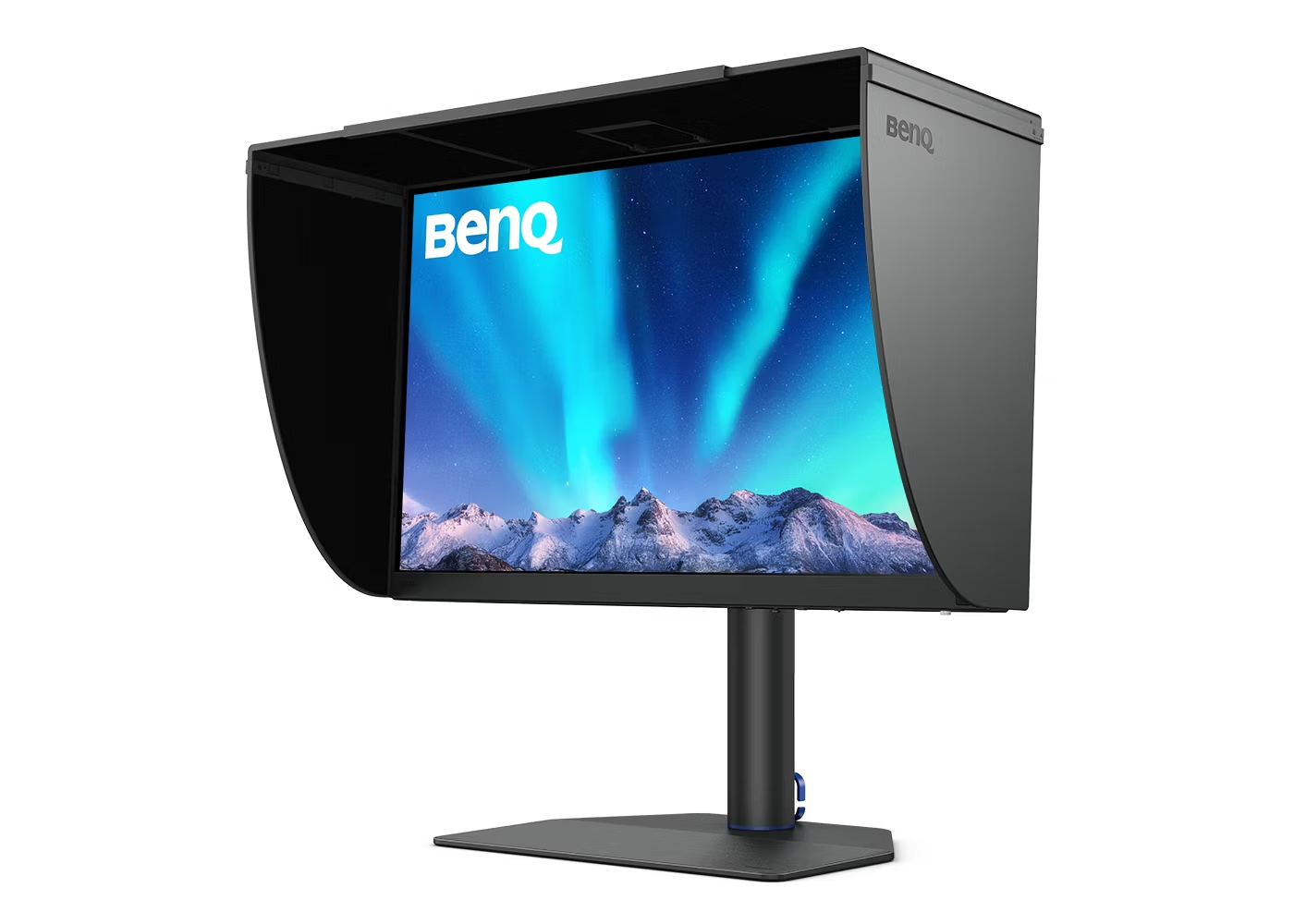
BenQ PhotoVue SW272U

Reference photo monitor: 99% Adobe RGB, 16-bit 3D LUT hardware calibration and a glare-free nano-matte panel.

Why it fits: Hardware calibration and a nano-matte finish on a 4K panel, for print and photo work where the screen has to be trusted rather than just look good.

Color Coverage
99% Adobe RGB / 99% DCI-P3
Panel Type
IPS (Nano-Matte)
HDR
HDR10 / HLG (DisplayHDR 400)
USB-C Power Delivery
90 W

Best suited for: Creative Work · Video Editing · Photo editing

Tradeoff: Expensive (price varies by bundle)

Skip it if: General users and gamers; the value proposition only makes sense for color-critical work.

Price
$1,099–$1,549 (varies by bundle/retailer)
Check Price Full review
5Best for Competitive Gaming
SetupArc9.0

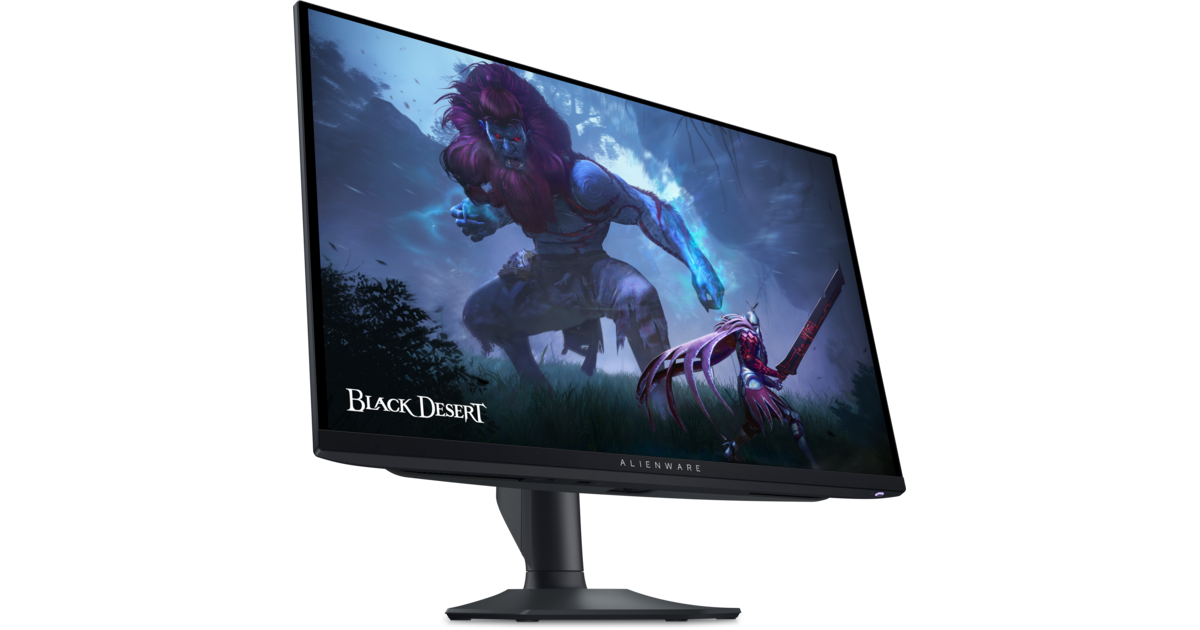
Alienware AW2725DF

360Hz QD-OLED with True Black HDR — elite motion clarity and contrast for gaming.

Why it fits: The fastest panel at this size: 1440p QD-OLED at 360 Hz with a 0.03 ms response, aimed squarely at fast-paced play rather than desk work.

Refresh Rate
360 Hz
Panel Type
QD-OLED
Response Time
0.03 ms (GtG)
HDR
DisplayHDR 400 True Black

Best suited for: Gaming · Competitive play

Tradeoff: No USB-C video or laptop charging

Skip it if: Buyers needing USB-C charging/docking, and those worried about OLED burn-in for static desktop work.

Price
$690
Check Price Full review
6Best for Console Gaming
SetupArc8.9

LG UltraGear 27GS95QE-B

240Hz WOLED with True Black HDR and a matte finish — premium 1440p OLED gaming.

Why it fits: 240 Hz WOLED with a matte anti-glare finish and two HDMI 2.1 ports, so a PC and a current console can both stay connected at full bandwidth.

Refresh Rate
240 Hz
Panel Type
WOLED
HDMI
2 × HDMI 2.1
Adaptive Sync
FreeSync Premium Pro / G-Sync Compatible

Best suited for: Gaming · Competitive play

Tradeoff: No USB-C video/charging

Skip it if: Buyers who need USB-C/docking, or who want the absolute cheapest OLED.

Price
$630–$800
Check Price Full review
7Best OLED Value
SetupArc8.6

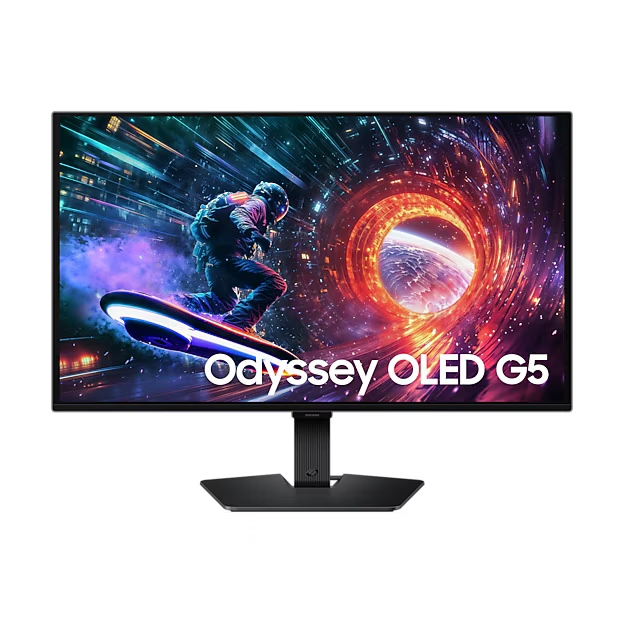
Samsung Odyssey OLED G5 (G50SF)

OLED contrast and color at roughly $400 — the value entry point into OLED gaming.

Why it fits: QD-OLED contrast and 180 Hz for around $400 — the cheapest route to an OLED panel here, trading peak brightness and refresh for the price.

Panel Type
QD-OLED
Refresh Rate
180 Hz
Brightness
200 nits (typical)
HDR
HDR10

Best suited for: Gaming · General Use

Tradeoff: No USB-C

Skip it if: Competitive players chasing 240Hz+, and anyone who needs USB-C or bright-room HDR.

Price
$399
Check Price Full review
8Best Budget Pick
SetupArc8.5

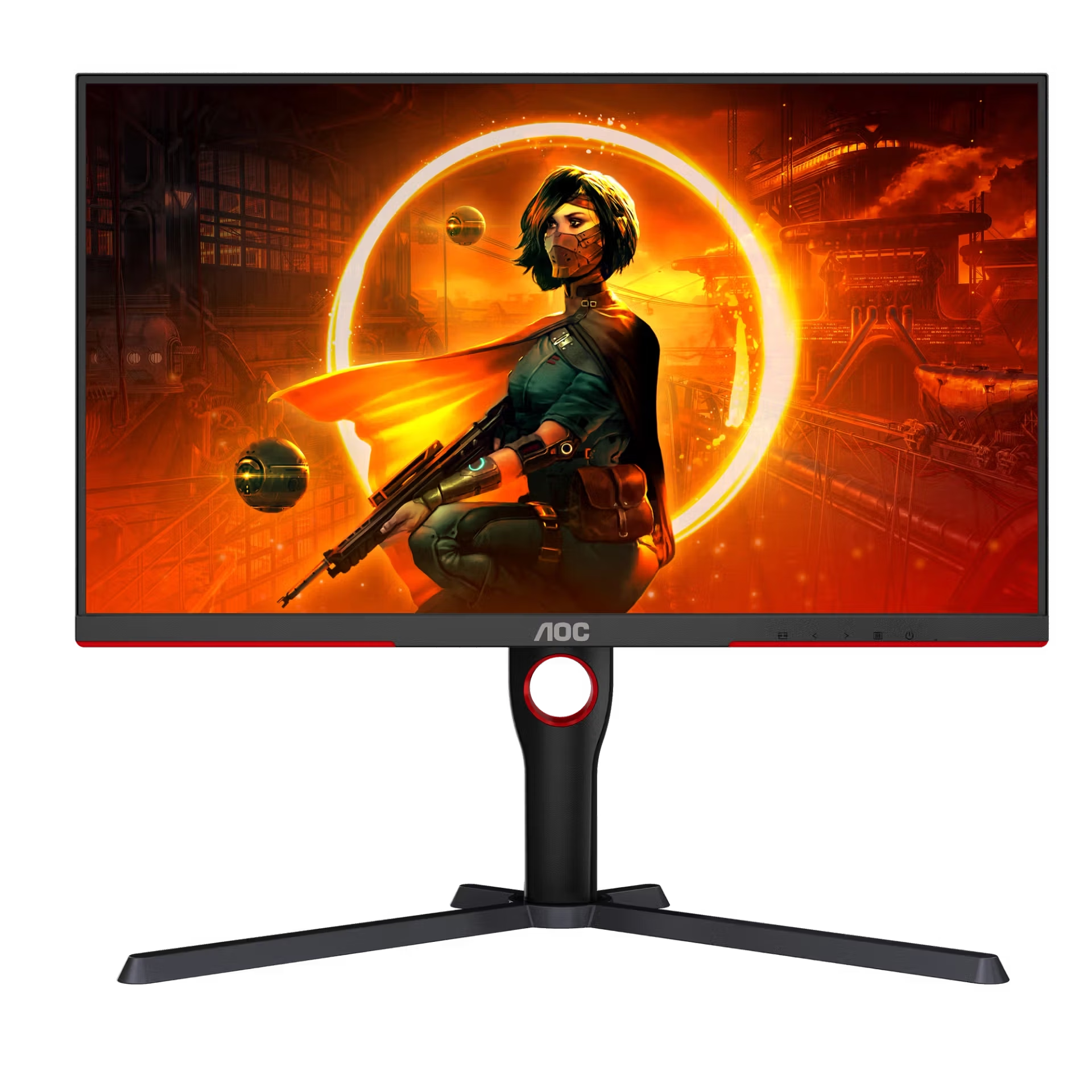
AOC Gaming Q27G3XMN

Mini-LED DisplayHDR 1000 and 180Hz for around $230 — the budget HDR gaming champion.

Why it fits: The cheapest monitor on this page, and still the brightest HDR: a 336-zone Mini-LED backlight rated DisplayHDR 1000 at 180 Hz.

HDR
VESA DisplayHDR 1000
Brightness
1000 nits (peak)
Refresh Rate
180 Hz
Panel Type
VA (Mini-LED)

Best suited for: Gaming · General Use · HDR

Tradeoff: VA viewing angles

Skip it if: Buyers who need wide viewing angles, OLED motion, or USB-C connectivity.

Price
$230
Check Price Full review
9Best Budget KVM
SetupArc8.3

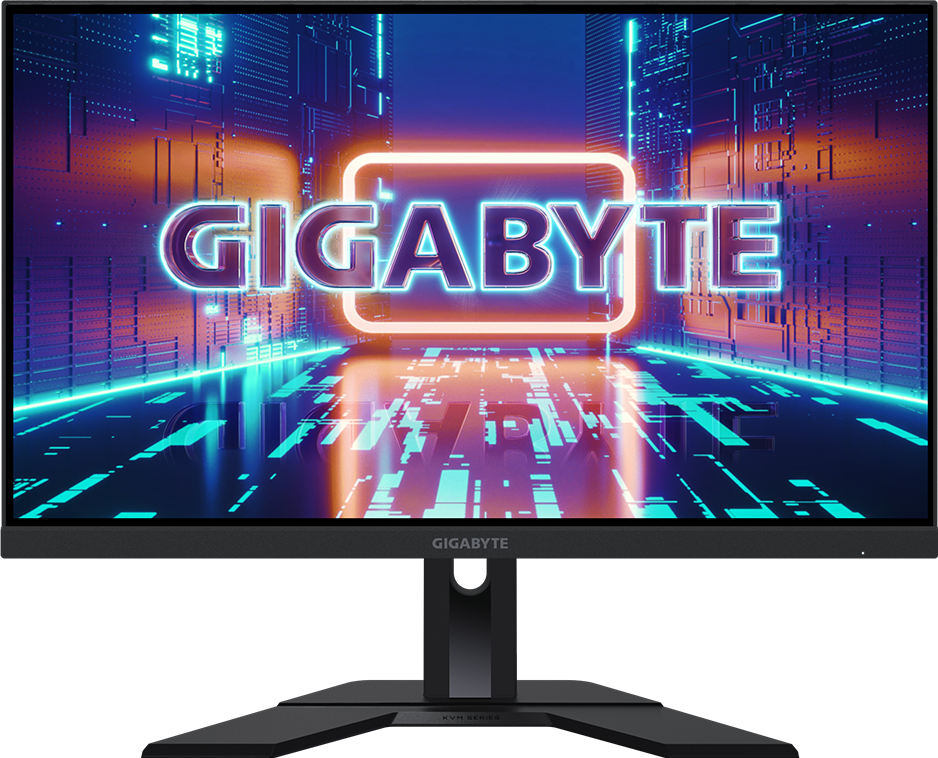
Gigabyte M27Q (Rev. 2.0)

1440p, 170Hz, KVM and USB-C at a value price — a dependable do-a-bit-of-everything monitor.

Why it fits: A built-in KVM at a budget price, so one screen, keyboard and mouse can serve two machines — a feature that otherwise appears only on the flagship here.

KVM Switch
Yes
Refresh Rate
170 Hz
Color Coverage
95% DCI-P3
USB-C
Yes (data)

Best suited for: Gaming · Productivity · General Use

Tradeoff: Basic HDR (no real local dimming)

Skip it if: Buyers who want OLED contrast, HDR impact, or full USB-C laptop charging.

Price
$230–$280
Check Price Full review

All nine 27-inch monitors compared

MonitorScoreResolutionPanel TypeRefresh RateUSB-C Power DeliveryKVM SwitchPrimary use caseReference price
Dell UltraSharp U2725QE9.23840 × 2160 (4K UHD)IPS Black120 Hz140 WYesProductivity$640–$870
Dell S2725QC8.43840 × 2160 (4K UHD)IPS120 Hz65 WNot recordedProductivity$280–$350
ASUS ProArt Display PA279CRV8.63840 × 2160 (4K UHD)IPS60 Hz96 WNot recordedCreative Work$399–$470
BenQ PhotoVue SW272U9.03840 × 2160 (4K UHD)IPS (Nano-Matte)60 Hz90 WNot recordedCreative Work$1,099–$1,549 (varies by bundle/retailer)
Alienware AW2725DF9.02560 × 1440 (QHD)QD-OLED360 HzNot recordedNot recordedGaming$650–$825
LG UltraGear 27GS95QE-B8.92560 × 1440 (QHD)WOLED240 HzNot recordedNot recordedGaming$630–$800
Samsung Odyssey OLED G5 (G50SF)8.62560 × 1440 (QHD)QD-OLED180 HzNot recordedNot recordedGaming$380–$430
AOC Gaming Q27G3XMN8.52560 × 1440 (QHD)VA (Mini-LED)180 HzNot recordedNot recordedGaming$200–$260
Gigabyte M27Q (Rev. 2.0)8.32560 × 1440 (QHD)SS-IPS170 HzNot recordedYesGaming$230–$280

Specifications and primary use case come from each product's own record in our catalogue. Where a value is not stored we say so rather than estimating it. Reference price is a typical street price, not a live retailer quote.

1440p or 4K at 27 inches?

This is the real decision at this size, and the split here is close to even: five of these nine are 1440p and four are 4K. 1440p puts fewer pixels across the same width, so text is less sharp but the desktop is usable at native size with no scaling, and the panels cost less and reach much higher refresh rates. 4K is noticeably sharper for reading and code, though most people run it scaled at 27 inches, which trades some of the extra desktop space back for comfortable text. As a rough guide: pick 1440p if refresh rate and price lead your list, and 4K if you spend the day reading text or working with detailed images. How hard a resolution is to drive depends on the work and the machine, so judge that against your own setup rather than a spec sheet.

Read the full 4K vs 1440p comparison →

Is OLED worth it at 27 inches?

Three of these nine are OLED, and they are the strongest picks for contrast and motion: per-pixel black levels and response times around 0.03 ms, against 1 to 5 ms for the LCD panels here. The trade-offs are real but specific.

Where OLED wins
Dark-room contrast, HDR impact and motion clarity. For gaming and video at this size, nothing else here competes — which is why the fastest and the most expensive gaming picks are both OLED.
Static desktop use
Interface elements that never move — a taskbar, a fixed toolbar — are the wear case for OLED. Current panels ship with protective measures such as pixel shifting and static-content dimming, and our own guidance for these products says to skip them if you leave static UI on screen for long stretches without that care.
Brightness in a lit room
The value OLED here is stored at 200 nits typical, while the Mini-LED budget pick is rated 1000 nits peak. In a bright room that gap is more noticeable than the contrast advantage.
The LCD case
If the monitor mostly shows documents in a sunlit room, an IPS or Mini-LED panel avoids the wear question entirely and costs less.

60, 120, 180, 240 or 360 Hz?

Every band is represented at this size, and the price climbs with it. A higher refresh rate only helps when the machine driving the screen can actually produce frames at that rate, so match it to the work rather than buying the largest number.

60 Hz
The two colour-focused picks run here. Fine for documents, photo and print work; scrolling and cursor motion are visibly less smooth than anything above.
120 Hz
The point where everyday use feels smoother — the two 4K productivity picks sit here, which is enough for general gaming as well.
180 Hz
The mainstream gaming band at 1440p, and where both the budget pick and the value OLED land.
240 Hz
Meaningful for fast-paced games; the console-friendly OLED reaches it. Beyond this point the gains get smaller for most players.
360 Hz
Competitive play specifically. It is the headline feature of the fastest pick here, and it is not a productivity feature.

What matters for this use case

Resolution at this size

1440p is sharp enough for most work at 27 inches and leaves budget for refresh rate; 4K is sharper for text and detail but usually runs scaled. Neither is universally right — it depends on whether you optimise for clarity or for speed and price.

Panel type

IPS is the dependable default for colour and viewing angles, IPS Black adds contrast for text, VA with Mini-LED gives the brightest HDR here, and OLED gives per-pixel blacks and the fastest motion with static-content care to consider.

Refresh rate

60 Hz suits colour work, 120 Hz covers mixed use, 180 Hz is the mainstream gaming band and 240–360 Hz is for fast-paced play. The step up costs more at 4K than at 1440p.

USB-C and docking

Four of these nine charge a laptop over USB-C, from 65 W to 140 W. The rest either omit USB-C or carry data only, which is worth checking before assuming one cable will do everything.

KVM

Only two monitors here have a stored KVM — the flagship and the budget Gigabyte. If you run two machines from one desk, that narrows the list quickly.

Colour needs

99% sRGB covers general work. Adobe RGB coverage matters for print, and hardware calibration rather than factory calibration is what separates the two creative picks.

Budget

Below roughly $300 you are choosing between HDR brightness and panel uniformity, and giving up USB-C charging and dock features. Above $700 you are paying for either OLED speed or workstation connectivity, rarely both.

How we chose

Recommendations are based on current specifications, product positioning, verified manufacturer data and third-party testing — not hands-on reviews. Products are ordered by how well they fit this specific use case, never by commission, retailer count or popularity. Use the interactive Compare tool and the Setup Finder to weigh them against your own priorities.

Common questions

Is 27 inches too small for 4K?

No, but most people run it scaled rather than at native size, which keeps text comfortable and returns some of the extra desktop space. If you want maximum usable area from 4K rather than maximum sharpness, a larger panel uses those pixels better.

Is 1440p better than 4K at 27 inches?

It is cheaper, needs no scaling and reaches far higher refresh rates — the 360 Hz and 240 Hz picks here are both 1440p. 4K is sharper for text and detailed images. Choose by which of those you notice more in a working day.

Is 27 inches good for productivity?

It is the most common size for desk work for good reason: a full-size window plus a second panel fits comfortably at normal desk distance. Our productivity pick at this size pairs 4K with a Thunderbolt dock, KVM and Ethernet so one cable handles everything.

Is OLED good for office use?

It can be, with care. Contrast and motion are excellent, but static interface elements over long sessions are the wear case, and current panels counter that with pixel shifting and static-content dimming. Our own guidance on these models says to skip OLED if you leave static UI on screen for long stretches without using those features — and note the value OLED here is only 200 nits typical, which matters in a bright room.

Is 120 Hz worth it for work?

It makes scrolling and window movement noticeably smoother than 60 Hz, and both 4K productivity picks here include it at no great premium. It is a comfort improvement rather than a requirement — plenty of colour-critical work happens at 60 Hz.

Is 27 inches good for gaming?

It is the mainstream competitive size, and four of these nine are gaming-first. At 1440p you can reach 180 Hz for around $230 or 360 Hz at the top end; at 4K the refresh ceiling here is lower and the price higher.

Related content