Best Monitors for MacBook in 2026
One cable should carry video, data and power. Which monitors in our catalogue actually deliver that for a MacBook, which charge too slowly to rely on, and which cannot do it at all.
SetupArc verifies technical specifications against manufacturer documentation and preserves unknown values when a specification cannot be confirmed. How we score · About the editor · Affiliate disclosure
What you'll learn
- A one-cable MacBook desk needs USB-C DisplayPort Alt Mode, not just a USB-C port
- Charging wattage decides whether the cable replaces your power adapter
- Eight monitors we list do video and charging over a single cable
- Six have no USB-C video at all, whatever else they are good at
The appeal of a MacBook desk is a single cable: close the laptop, plug in one connector, and have a display, your peripherals, a network and power all arrive at once. Whether a given monitor delivers that comes down to two specifications that marketing copy tends to blur together — whether its USB-C port carries video at all, and how much power it can send back.
The two specifications that decide it
A USB-C port on a monitor can mean three quite different things. It can be a data hub only, passing peripherals through but accepting no picture. It can accept video via DisplayPort Alt Mode. Or it can be a full Thunderbolt port, which does both and adds enough bandwidth for daisy-chaining a second display.
We store those as separate facts, because conflating them is exactly how people end up with a monitor that shows nothing when they plug the laptop in. A monitor that lists "USB-C" but not USB-C video is a hub with a screen attached, and it will need a second HDMI or DisplayPort cable for the picture.
A 13-inch MacBook Air ships with a 30W adapter; a 16-inch MacBook Pro ships with 140W. A monitor that supplies 65W will keep an Air comfortably topped up and will slow a Pro down under sustained load — it charges, just not as fast as the laptop can draw. That is a limitation worth knowing, not a fault.
Full one-cable setups
Thirteen monitors in the catalogue are recorded with both USB-C video and a charging figure, which is the combination that makes one cable enough. They are ordered here by charging power, because that is the specification most likely to decide which MacBook they suit.
| Monitor | Charging | Resolution | Notes |
|---|---|---|---|
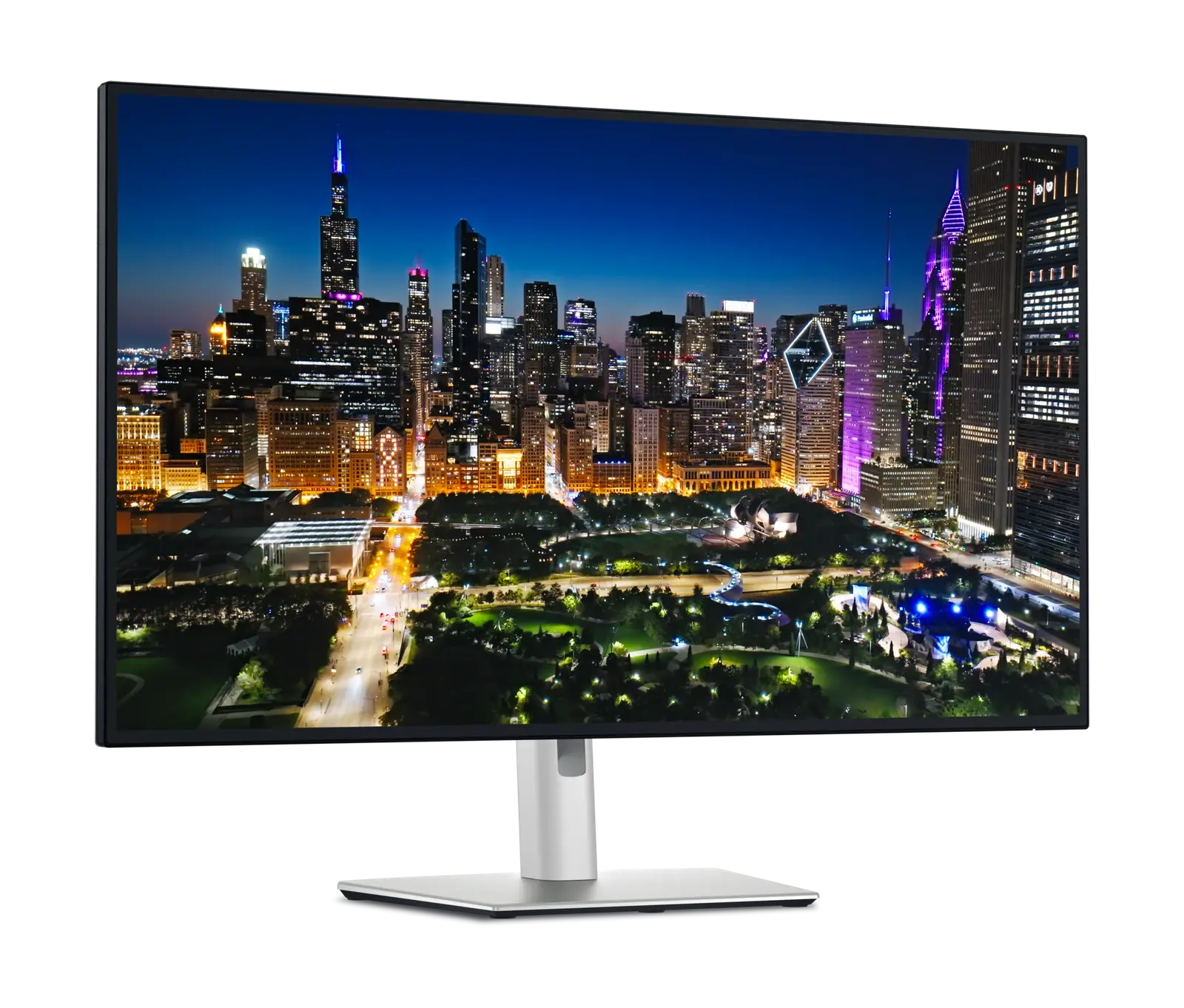
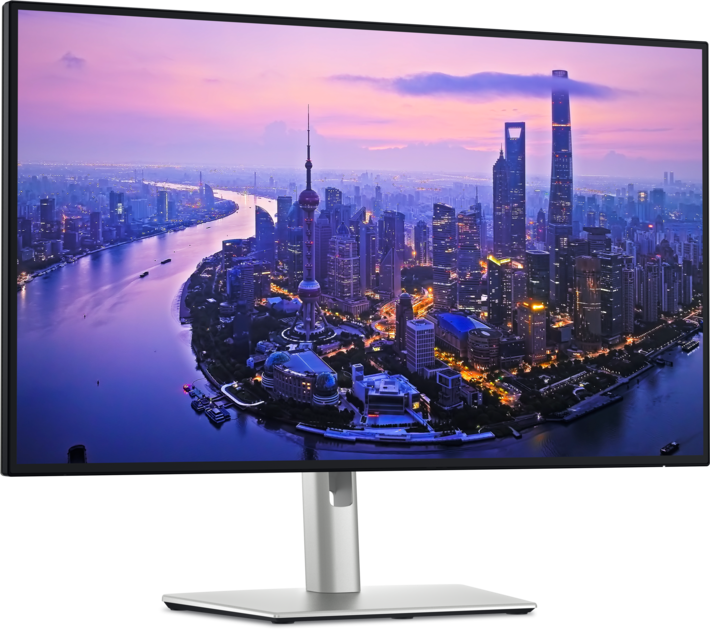
| Dell UltraSharp U3225QE | 140 W | 32" 4K @120Hz | Thunderbolt 4, 2.5Gb Ethernet, KVM — the most complete single-cable desk here |
| Dell UltraSharp U2725QE | 140 W | 27" 4K @120Hz | Same feature set at 27 inches |
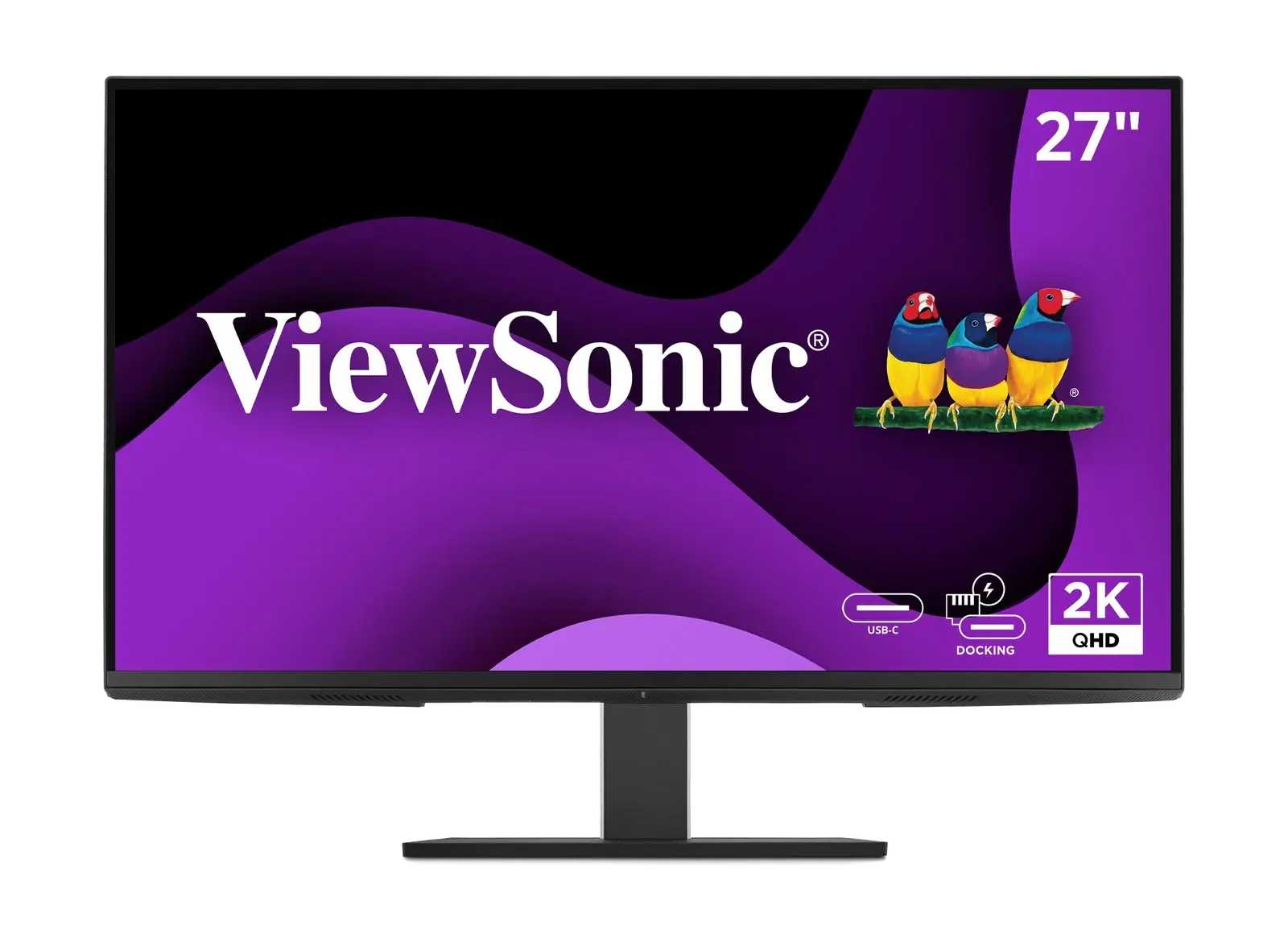
| ViewSonic VG2758-2K | 100 W | 27" 1440p @100Hz | Ethernet and a USB hub at a much lower price; see the HDMI caveat below |
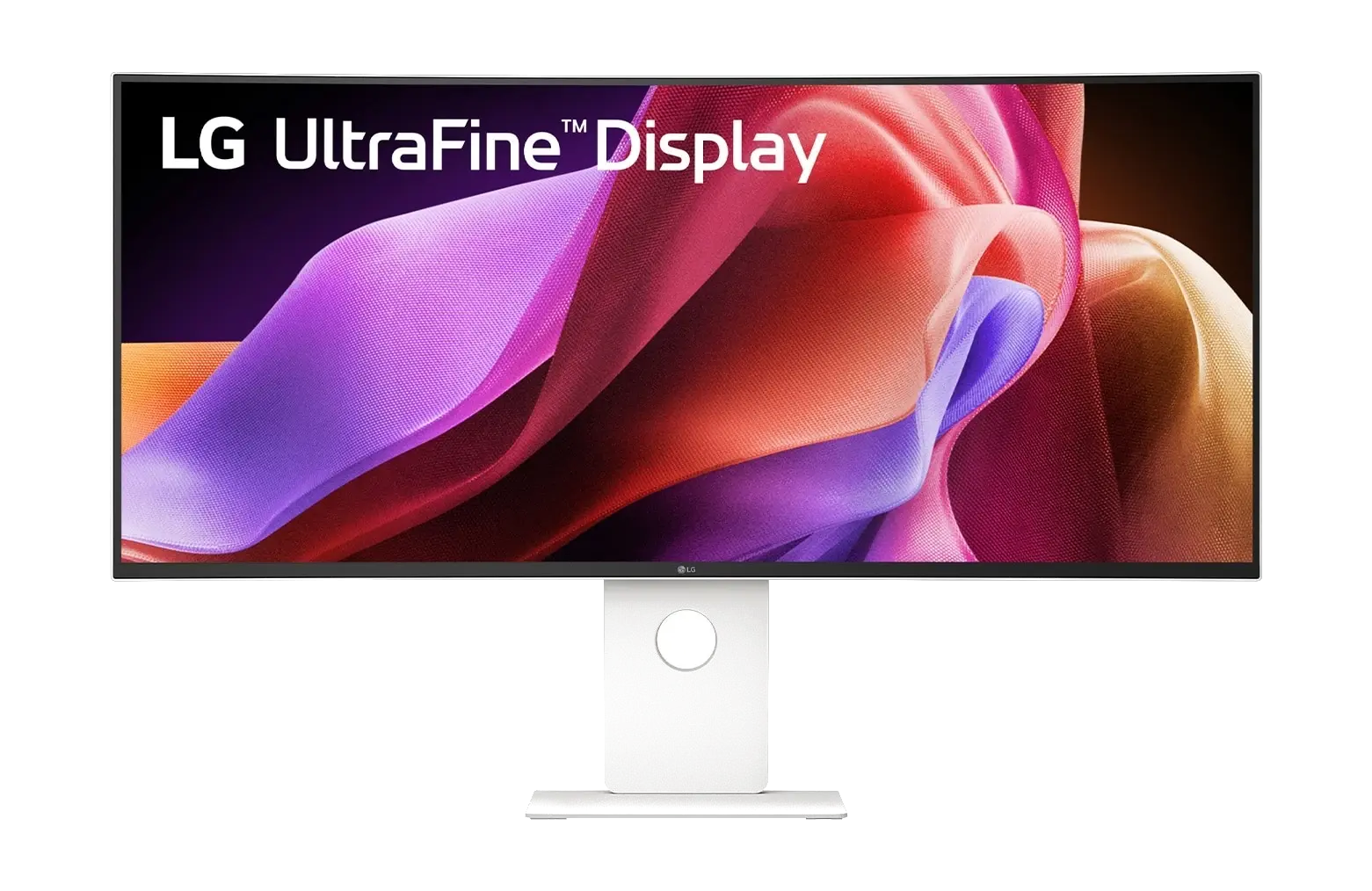
| LG UltraFine evo 40U990A-W | 96 W | 40" 5K2K @120Hz | Thunderbolt 5 and the widest workspace we list |
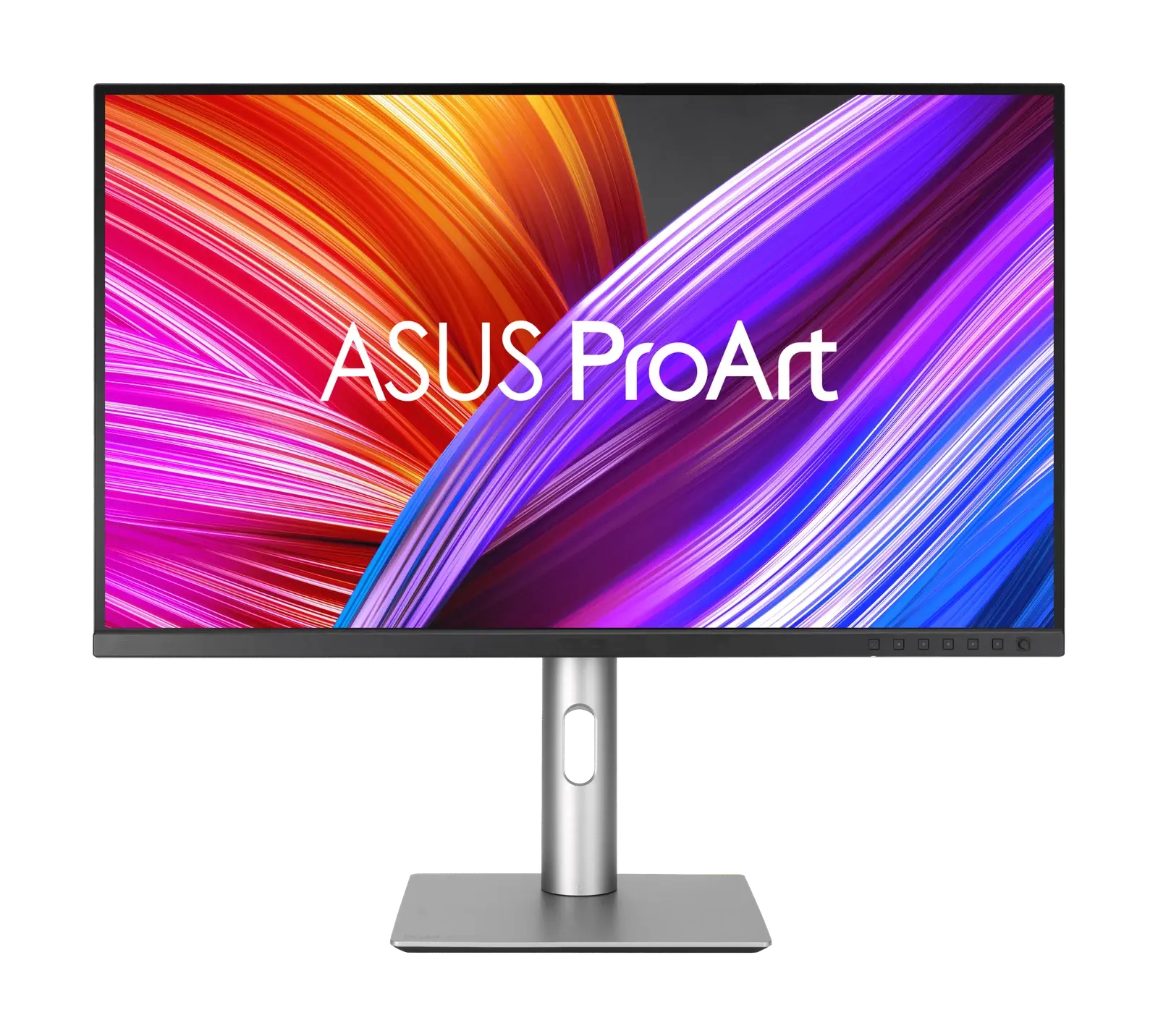
| ASUS ProArt PA279CRV | 96 W | 27" 4K @60Hz | Wide-gamut panel aimed at colour work |
| ASUS ProArt PA27JCV | 96 W | 27" 5K @60Hz | 5120 × 2880 at ~218 PPI — the sharpest panel we list, and the density macOS scales against |
| ASUS ProArt PA248CRV | 96 W | 24.1" 1920×1200 @75Hz | A compact 16:10 calibrated panel; high charging for its size |
| BenQ PhotoVue SW272U | 90 W | 27" 4K @60Hz | Hardware-calibrated photo display |
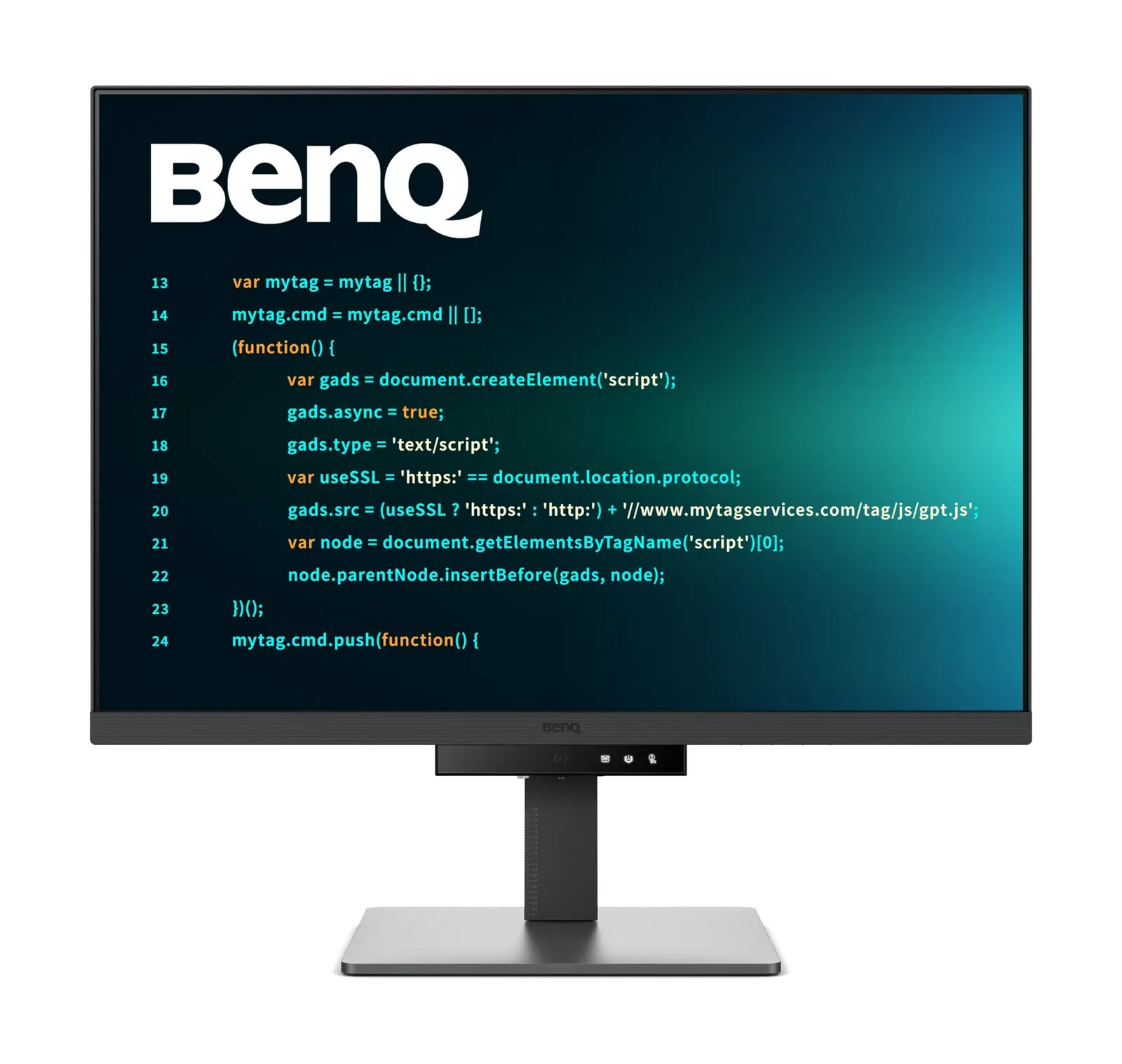
| BenQ RD280U | 90 W | 28.2" 3:2 4K+ @60Hz | Extra vertical space for code; KVM included |
| ASUS ROG Swift OLED PG32UCDM | 90 W | 32" 4K @240Hz | A gaming OLED that happens to charge a laptop |
| BenQ PD2730S | 90 W | 27" 5K @60Hz | Thunderbolt 4 with a daisy-chain port, plus Pantone and Calman validation |
| Dell UltraSharp U3425WE | 90 W | 34" 3440×1440 @120Hz | Thunderbolt 4 ultrawide with 2.5Gb Ethernet and a KVM |
| Dell Pro 24 Plus P2425E | 90 W | 24" 1920×1200 @100Hz | Gigabit Ethernet and a DisplayPort output for a second screen |
Choosing between them
If you use a 16-inch MacBook Pro and work it hard, the two 140W UltraSharps are the only ones here that match its own adapter. Everything else will charge it, more slowly, while you work — which in practice is fine for writing and browsing and noticeable during a long export.
If your work is windows side by side rather than one big window, the LG 40U990A-W is a different proposition from everything else on the list: 5120 × 2160 is roughly two full-height windows, where a 32-inch 4K panel gives you one large one and some spare. It is also the only display we list with Thunderbolt 5 and DisplayPort 2.1 — worth knowing that reaching its full 5120 × 2160 at 120Hz together with 96W charging requires a host that supports those standards.
On scaling: macOS drives 4K panels well at 27 to 32 inches, typically scaled rather than at native size, which keeps text comfortable. The 3:2 BenQ RD280U is the unusual one — 3840 × 2560 gives roughly 400 more vertical pixels than a 16:9 4K panel, which is a real gain if your day is spent in a text editor and an irrelevance if it is not.
The VG2758-2K is the value option on this list and a capable dock, but its HDMI input is version 1.4, which cannot carry its own 1440p panel at 100Hz. Connect it over USB-C or DisplayPort and it is fine; treat HDMI as a fallback rather than the primary input.
Works, but check the charging
Four monitors accept video over USB-C but come with a caveat about power. Two of them have a recorded wattage that is simply low; two have no published figure at all.
| Monitor | Charging | What that means |
|---|---|---|
| Dell S2725QC | 65 W | Comfortable for a MacBook Air; may charge a larger Pro more slowly than its own adapter under load |
| Gigabyte M27Q | 10 W | Enough to trickle, not to keep a working MacBook topped up — plan on a separate power cable |
| Gigabyte M28U | Unknown | USB-C video is confirmed; Gigabyte does not publish a power-delivery figure we can cite |
| ASUS ZenScreen MB16ACV | Unknown | A portable second screen; ASUS publishes only a DC input rating, not a USB-C PD wattage |
The word unknown there is deliberate and we would rather print it than a plausible guess. Neither manufacturer publishes a USB-C power-delivery input figure for those two models, so we do not record one. If charging over the single cable is the point of your setup, that uncertainty is itself the answer: choose a monitor with a published figure.
Good monitors that will not do one-cable
Six monitors we list have no USB-C video input. Several are excellent — they are simply built for a desktop graphics card rather than a laptop. With a MacBook they need an HDMI or DisplayPort cable for the picture and the laptop's own adapter for power, which is a perfectly normal two-cable desk, just not the one this guide is about.
- Alienware AW3423DWF — 34" QD-OLED ultrawide; USB data hub only
- Alienware AW2725DF — 27" 360Hz QD-OLED; USB data hub only
- LG UltraGear 27GS95QE — 27" 240Hz WOLED
- Samsung Odyssey OLED G5 G50SF — 27" 180Hz QD-OLED
- AOC Q27G3XMN — 27" Mini-LED, the brightest HDR we list
- LG UltraGear 27GS60F-B — 27" 1080p 180Hz budget gaming panel
There is a pattern worth naming: every one of those six is a gaming display. High-refresh gaming panels overwhelmingly prioritise DisplayPort and HDMI bandwidth over docking features, which is a reasonable engineering choice and an awkward one if your machine is a laptop.
What about a dock instead?
If you have already chosen a monitor without USB-C video, a Thunderbolt dock gets you back to one cable at the laptop — the dock takes power and peripherals, and sends video on to the monitor over HDMI or DisplayPort. Our docking station picks cover that route, and the trade is one more box on the desk against freedom to pick any monitor you like.
Where these verdicts come from
Each verdict above is produced by the compatibility engine on our product pages, reading three stored facts: whether the USB-C port carries DisplayPort Alt Mode, the published power-delivery wattage, and whether the port is Thunderbolt. Those facts come from manufacturer documentation. Where a figure is not published we store nothing rather than an estimate, which is why two entries above read "unknown" instead of a number. The full process is in how we verify specifications.
Answer a few questions about your machine and your desk, and the Finder narrows these 23 monitors down for you.
Find your monitor